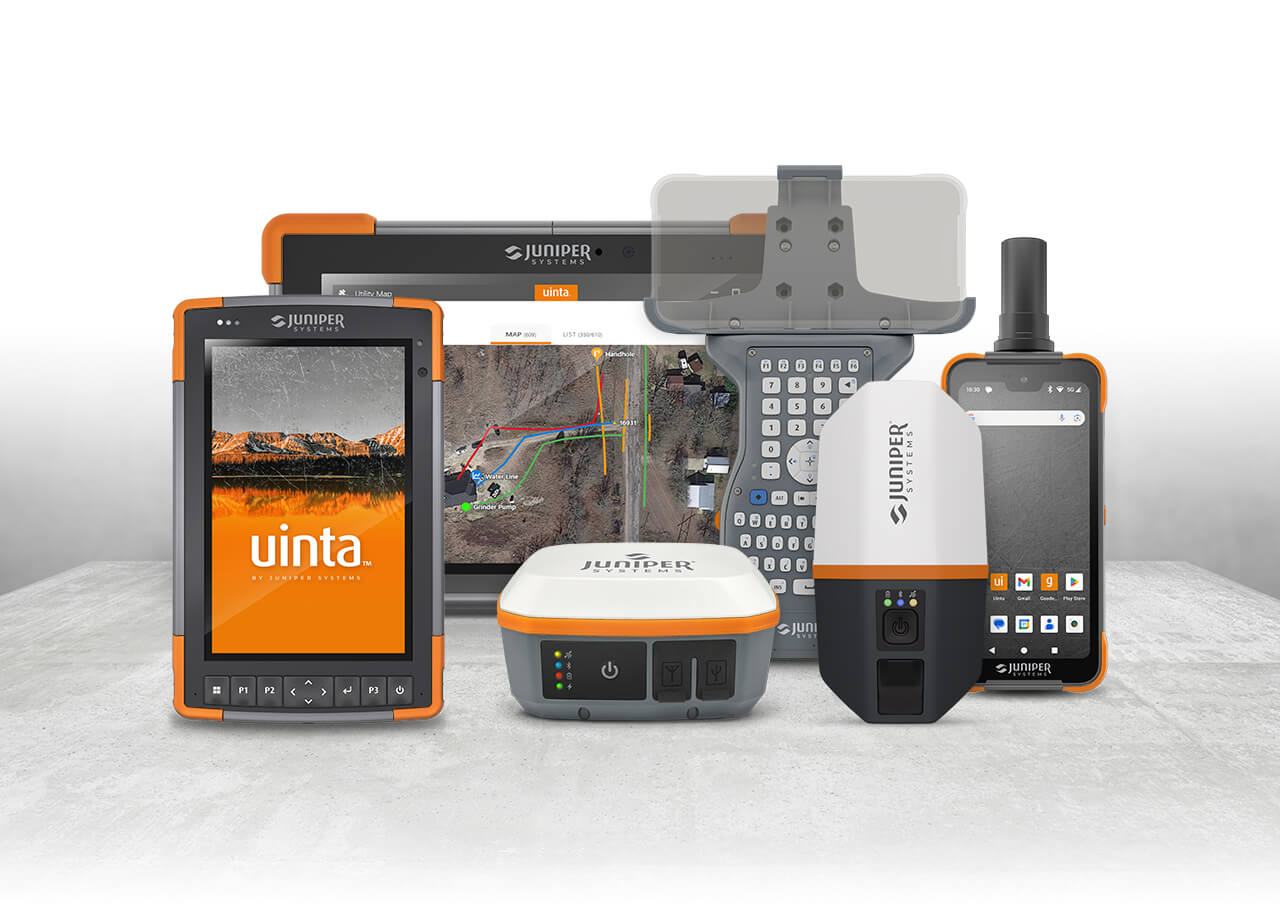
Field season is almost here, and there is a lot of work that’ll come with it, so before you kick off the season, now is a great time to make sure your Juniper Systems solutions are taken care of. Whether you’re using our rugged handhelds, a Geode, Uinta, or a combination of them all, we have some tips to ensure your devices are ready to go after sitting for a few months. From checking system updates on the tablets and maintaining the battery on the Geode, to making sure your Uinta subscription is active, here are a few things to check before hitting the field.
Rugged tablets
System updates for the tablets are one of the biggest things that can be overlooked at the beginning of field season and are crucial for achieving the best performance from the device.
Updates for our Android devices, such as the Mesa 3 Android and the Archer 4, the process is the same within the system settings and are the easiest to check and update. Android operating system updates typically become available on a quarterly basis. The following links will help with installing them:
For our Windows devices, such as the Mesa 4 and Mesa Pro, it’s recommended that you update them through the device settings. When the device is connected to the internet, you can manage and check for available updates from the Update screen in Device Settings. You can follow these steps to check for updates:
- Ensure the device is connected to the internet.
- Plug the device into an external power supply.
- Open Device Setting > Update (Device Settings are separate from Windows Settings).
- Select Check for Updates.
- Follow the prompts to install any firmware or OS updates. (Once updates are finished, you may be prompted to restart the tablet).
If that doesn’t work, you can go to our support page to download and install updates for the specific product to make sure the device is ready to go.
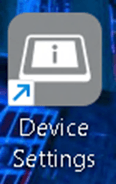
For Mesa 4 and Mesa Pro users on desktop, look for this icon to open Device Settings:
For Mesa 3 Windows, you can follow the steps for updating the device from this Support Article: Mesa 3 Windows Firmware & Operating System Updates
Juniper Systems Firmware and Patch OS updates aren’t on a specific timeline and mostly come out when there is a new feature or bug fix, and you can use the following links to help with updating your Mesa 4 and Mesa Pro:
Geode
For our Geode GNSS receiver, the main things to look for are firmware updates and making sure that the battery is being properly maintained in the off season. Firmware updates aren’t needed often, and the most recent one was for the GALHAS release on the GNS3H. But if you’d like to see if your Geode needs a firmware update, you can use these articles on how to update them: GNS1 & GNS2 Firmware Update – GNS3 Firmware Update.
For the GNS3S and GNS3M, you may need to update the Bluetooth firmware to ensure that the receiver and mobile device stay connected without interruption. You can find how to do that here: Update Bluetooth Firmware on Geode GNS3 Receiver.
In the off-season, it’s important to follow the recommendations in the product manual to ensure that the battery is properly maintained, and you can find the manuals here: GNS3 User Manual, GNS1 & GNS2 User Manuals. For example, if the battery is completely drained and then stored in the off-season, the battery will not achieve a full charge by plugging it into a standard wall charger. Instead, it will need to be trickle-charged with a lower voltage, which can be done by plugging it into a computer, for example. This will allow the battery to reach a full charge, enabling it to be plugged into a standard wall charger for its next charge. Here’s a support article to check out more info on charging recommendations: Charging Recommendations for Geode
Some people mention issues with the Geode flashing a red LED. The blinking red LED happens when there is a power fault of some kind. There are a couple of reasons why this might happen, such as the Geode being used for the first time or if the unit is cold with a low battery. It’s usually an easy fix and just means that it needs to get back to room temperature or it just needs to be plugged in. For more details you can check out this article: Red light flashes rapidly on Geode
archer 4
Like with the rugged tablets, ensuring that your Archer 4 is up to date is key. Android 14 automatically provides system updates, and to check if your handheld is up to date, all you need to do is go to Settings > Systems > System Update and see if there is one available. For more details or to see Release Notes, check out the link: System Updates for Archer 4. The last Android 14 update should be coming out in the next few weeks, then Android 16 updates will be available.
uinta
The main thing to check for with Uinta is ensuring that your subscription(s) are up to date and that you have the latest version. Once you’ve checked that, it’s also good to make sure that any apps you plan on using are updated, such as Juniper Connect, our new app that replaces Geode Connect and Archer Connect. Juniper Connect is a utility app for all Juniper Systems’ GNSS receivers and software. With Juniper Connect you can easily establish a connection to a mobile device, change receiver settings, and view GNSS data, such as position, altitude, estimated horizontal error, satellites in fix, and correction services. You can still use Geode and Archer Connect, as they are still available, but they will not receive any updates aside from bug fixes. Geode and Archer Connect are planned to be maintained through 2026 or until a big OS update occurs, then they will no longer be updated or maintained.
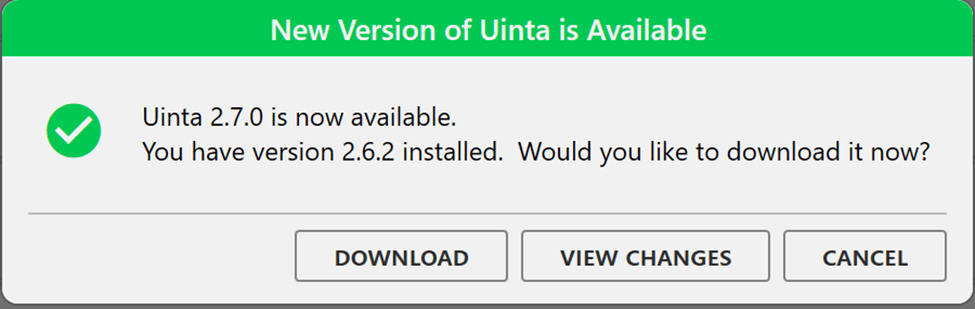
The good thing about the Google Play Store and Apple App Store is that they notify you when apps need to be updated or they automatically update for you. For Window users, either on desktop or in our rugged tablets, when an update is available a notification will pop up when you launch the Uinta app (when connected to Wi-Fi), letting you know that a new version is ready to download. From here, you have the option to Download, View Changes, or Cancel. If you click on View Changes, it will take you to the release notes.
accessories and other considerations
Once you’ve made sure the devices are ready to go, you just need to see if you have everything you need to get the job done. If you’re needing a wireless keyboard for better data collection or an all-in-one carry option for your Geode and smartphone/ handheld, now is the best time to get them before you’re slammed with work. Whether you need a survey pole, Allegro Wireless Keyboard, Geode Grip, batteries for your Mesa’s/Archer 4, or other accessories, you can easily get them from our webstore! – Juniper Systems Store
Along with accessories, it’s important that you have the correct licenses for the correction services you will be using, such as RTK for example. To make things easier on you, Juniper Systems now has Juniper RTK – a subscription service that delivers RTK corrections directly to your Juniper GNSS receiver! Juniper RTK provides ~2cm-level accuracy in the field with the simple push of a button and without the complexity of connecting to RTK networks! No complicated setup, just accurate and on-demand positioning wherever the work takes you.
Rock Solid. field ready.
Now that your rugged tablets and handhelds, GNSS receivers, and software are good to go, and you have all the accessories you need, and can achieve RTK correction with the push of a button with Juniper RTK, you are ready to tackle field season and whatever comes with it! Juniper Systems is proud to offer solutions that enable you to get the work done right the first time, and we stand behind them to ensure they don’t fail when you need them most. Your equipment should be as tough as you are, and with Juniper Systems, you and your equipment are Rock Solid and Field Ready.