

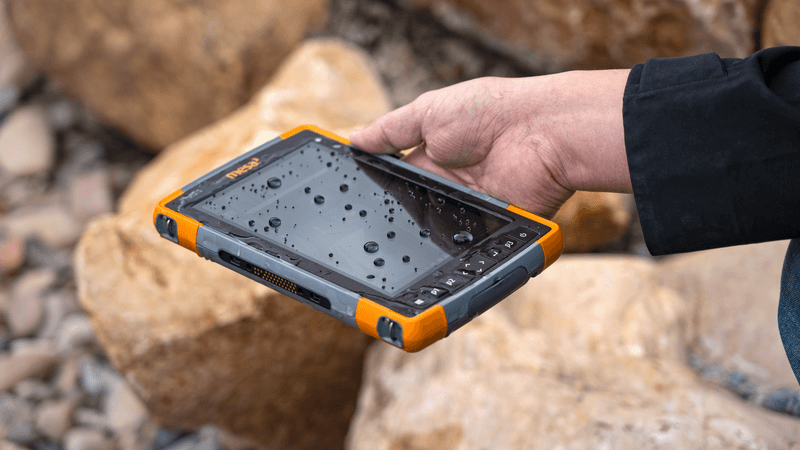
When you’re collecting data in the field, conditions are rarely ideal. Rain, cold, gloves, or mud can all impact how a touchscreen tablet responds. That’s why Juniper Systems’ rugged touchscreen devices — including the Mesa® Pro Rugged Tablet, Mesa 4 Rugged Tablet, Mesa 3 Android™ Rugged Tablet, and Archer™ 4 Rugged Handheld — feature multi-touch interfaces built to adapt to the situation. These rugged data devices are designed for reliability in the harshest environments.
What really sets these touchscreen displays apart is their ability to adjust sensitivity and responsiveness through customizable touch profiles. Whether you’re using a tablet stylus, your finger, or touchscreen gloves, these profiles allow users to maintain control in any condition.
Below, we’ll break down each available touch profile and how to select the right one for your environment and workflow.
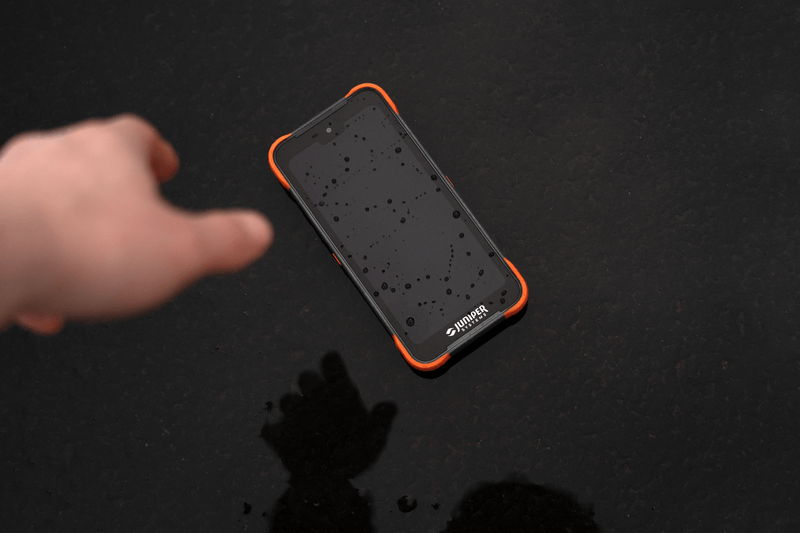
Wet Profile
When the weather turns, the Wet Profile ensures your touchscreen handheld stays reliable. Activating this profile reduces sensitivity to less conductive elements (like raindrops or melting snow) so that only deliberate inputs are recognized. This means your finger touch registers accurately, while droplets are ignored. This “water-ready” setting is ideal for users working in persistent rain or other wet environments.
Available on: Archer 4

Wet Finger Profile
The Wet Finger Profile provides the precision needed to operate your device in rain, snow, or icy conditions without false touches. When enabled, it calibrates the rugged touchscreen to recognize a finger even when moisture is present, as long as the device is held so water rolls off the screen.
This profile is ideal for users who prefer direct finger interaction in challenging weather and do not need to wear gloves.
Available on: Mesa Pro, Mesa 4, and Mesa 3 Android
Wet Stylus Profile
For those who depend on a tablet stylus in all conditions, the Wet Stylus Profile is built for precision. This setting fine-tunes the touchscreen tablet for use with a fine, hard-tipped stylus, even in rain, snow, or ice. This mode maintains control and accuracy when using the stylus tip.
Available on: Mesa Pro and Mesa 4
Finger/Stylus Profile
The Finger/Stylus Profile is ideal for users who switch between touch inputs throughout the day. Whether you’re tapping with your finger or writing with a tablet stylus, this dual-use setting provides flexibility and responsiveness for both.
Keep in mind, this profile is intended for dry environments and does not support glove use. The fine-tipped stylus included with your device provides the best results.
Available on: Mesa Pro and Mesa 4
Stylus Profile
When your work demands precision, the Stylus Profile ensures every tap and stroke is intentional. This mode fine-tunes the touchscreen display for responsiveness with the fine, hard-tipped stylus, ideal for tasks like map annotations, note-taking, or form entry.
Finger input is disabled in this profile, which helps prevent accidental touches — especially useful when resting your palm on the screen.
Available on: Mesa Pro, Mesa 4, and Mesa 3 Android
Finger (Default) Profile
The Finger (Default) Profile is the everyday setting for most users. Calibrated for fingertip input, this profile provides responsive performance and is the recommended setting for routine operation when touchscreen work gloves or heavy moisture aren’t a factor.
Available on: Mesa Pro, Mesa 4, and Archer 4
Glove Profile
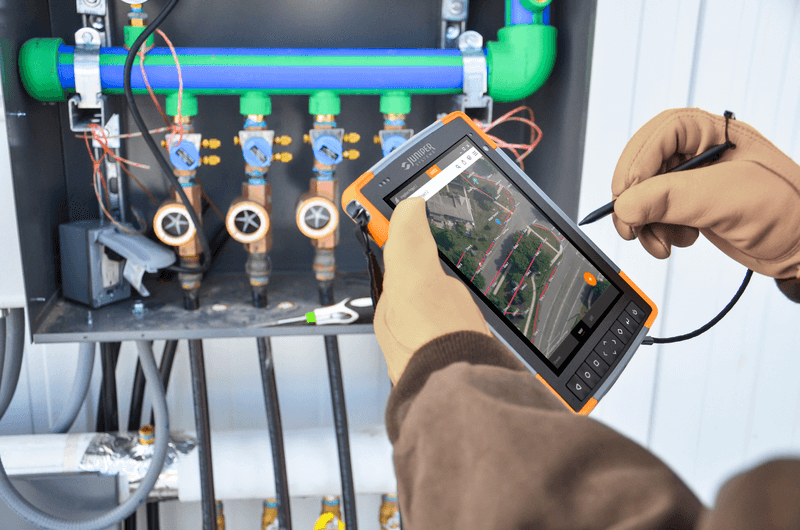
When conditions require gloves, the Glove Profile keeps you productive without sacrificing accuracy. This mode adjusts touch sensitivity for gloved input, allowing users to operate the device while wearing many types of gloves, especially gloves for touchscreen use, such as modified or conductive gloves.
Perfect for cold-weather data collection or industrial environments, this profile offers reliable performance in dry or lightly moist conditions.
Available on: Mesa Pro, Mesa 4, and Mesa 3 Android

Choose the Right Profile for Your Work Environment
Whether you’re navigating through snow in Alaska, working in a tropical rainstorm, or wearing heavy touchscreen gloves in the field, Juniper Systems’ rugged Android handheld and the Mesa rugged tablets lineup delivers dependable performance tailored to your conditions.
By selecting the right touch profile, you can ensure your Mesa Pro, Mesa 4, Mesa 3 Android, or Archer 4 remains responsive and reliable, wherever work takes you.
Need help enabling touchscreen profiles? For step-by-step instructions on how to enable touchscreen settings or switch profiles, consult the user manuals below: