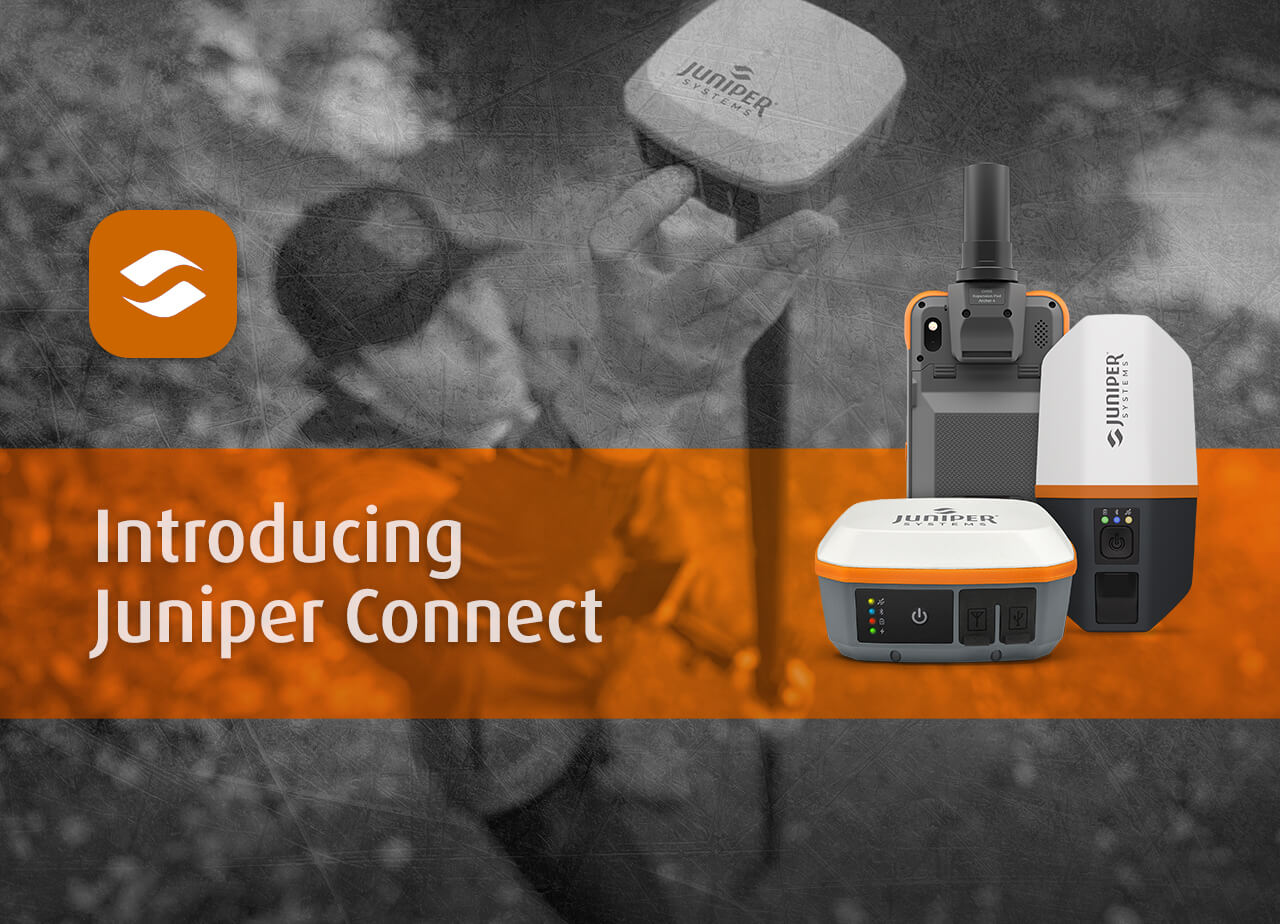
When accuracy matters in the field, your GNSS receiver is only part of the equation. At Juniper Systems, our GNSS receivers require a companion application called Juniper Connect in order for the receiver to communicate with your phone, handheld, or tablet. That makes Juniper Connect more than just a helpful add-on, serving as the bridge between your receiver and the mobile device you rely on every day.
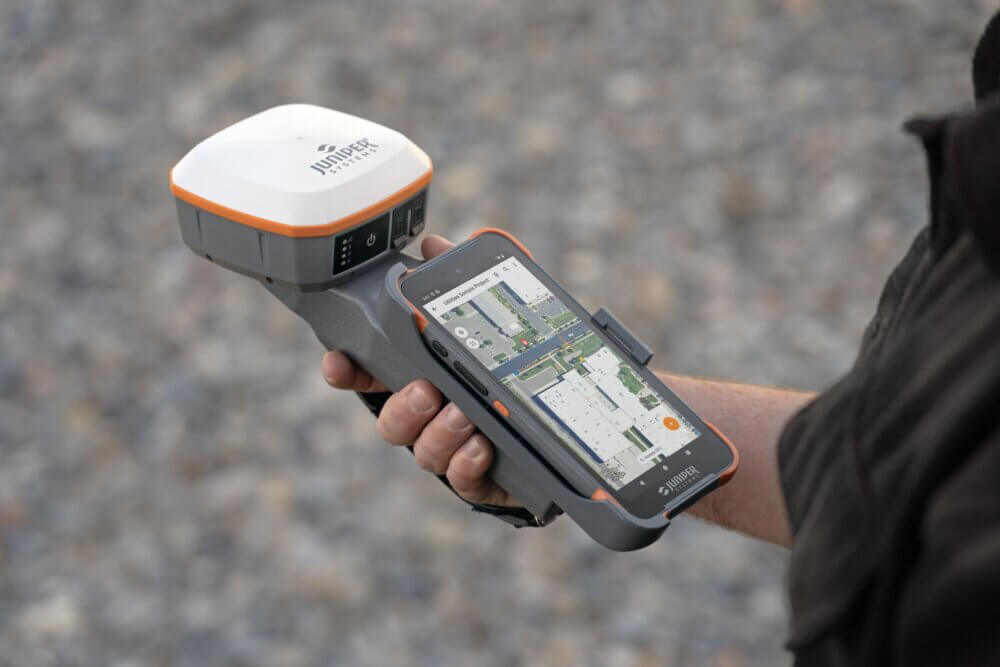
Whether you are using a Geode GNS3, Spire, or the Archer 4 GNSS expansion pod, Juniper Connect is our new utility app for all Juniper Systems’ GNSS receivers and software. Available for Android, iOS, and Windows, Juniper Connect enables users to easily establish a connection to a mobile device, change receiver settings, and view GNSS data, such as position, altitude, estimated horizontal error, satellites in fix, and correction services. You can still use Geode and Archer Connect, as they are still available, but they will not receive any updates aside from bug fixes. Geode and Archer Connect are planned to be maintained through 2026 or until a big OS update occurs, then they will no longer be updated or maintained, and Juniper Connect will fully replace them.
A Simple Way to Connect and Start Working
One of the biggest advantages of Juniper Connect is how straightforward it makes setup. The app walks users through pairing a GNSS receiver over Bluetooth on Android, iOS, and Windows, and also supports USB and RS-232 serial connections on Windows for compatible devices. Once connected, users can reconnect quickly in future sessions without repeating the full setup process.
On all platforms, Windows, Android & iOS, Juniper Connect enables the delivery of RTK corrections and position information in the background, allowing your preferred mapping application to access high-accuracy location data without needing to handle correction delivery or manage a direct connection to the GNSS device. It is important to note, that for use with Uinta, running Juniper Connect is not required. The features of direct connection and RTK corrections are integrated into the Uinta app.
Real-Time Visibility into Receiver Performance
Juniper Connect gives users immediate insight into receiver status through its Home screen dashboard. From one place, you can view key GNSS information such as:
- Latitude and longitude
- Elevation values
- Horizontal and vertical accuracy
- Heading and speed
- Correction type
- Fix information such as GPS, DGPS, or RTK
- Number of satellites in fix
- PDOP, correction age, and station ID
This kind of live visibility is invaluable for professionals who need to verify receiver performance before or during data collection.
The Skyplot screen adds another layer of awareness by showing the location of satellites overhead and indicating which satellites are part of the current positioning solution. It is a useful diagnostic and educational tool, especially when users need to understand signal conditions in the field, including where physical obstructions may be impacting signal reception.

Built for High-Precision Positioning
Juniper Connect is also where users can configure the receiver for higher-accuracy workflows. The app allows you to:
- Set up correction services
- Manage Network RTK/NTRIP profiles
- Connect to Juniper RTK
- Set the elevation mask angle
- Change update rates
- Configure NMEA output
- Select correction sources and SBAS options
This flexibility makes Juniper Connect especially valuable for GIS mapping, agriculture, utilities, and other field applications where precision and reliability are critical.
For Android users, Juniper Connect also supports mock locations, enabling apps that don’t directly connect to a GNSS receiver to access accurate positional data. On iOS, users can configure a TCP server, so third-party GIS apps can communicate with the receiver and receive NMEA data. These features help Juniper Connect fit naturally into a broader mobile workflow.
Helpful Tools Beyond Basic Connectivity
Juniper Connect goes well beyond connection management. It includes tools that help users troubleshoot, validate, and optimize receiver performance.
The Terminal screen displays incoming NMEA sentences from the receiver, giving advanced users a clear look at what the receiver is reporting. Users can capture and save log files for debugging, validation, analysis, or simulation. There is also support for sending commands directly to the receiver when needed.
The app also allows users to modify receiver configurations that are saved on the GNSS receiver itself. That means settings persist even when the receiver is later connected to a different device, helping streamline repeat workflows.
For Windows users, Juniper Connect becomes even more powerful by enabling firmware updates for supported receivers. If an update is available for a connected Spire or Geode receiver, the software notifies the user. A built-in troubleshooter can also help diagnose and correct certain firmware-related issues.
Support for Advanced Workflows
Juniper Connect also supports more advanced capabilities depending on the receiver. For example, Spire users can use the app for static data logging, where GNSS measurements are collected at a fixed location over time and saved for RINEX conversion and post‑processing. This is especially useful when high-quality static observations are required.
For users who want centimeter-level positioning, Juniper Connect supports Juniper RTK, a Network RTK correction source offered by Juniper Systems. Through the app, users can sign in, connect to the service with the push of a button, and configure coordinate reference system settings for accurate alignment with their mapping application.
The Link Between Your Receiver and Your Workflow
Juniper Connect is an essential part of the Juniper GNSS experience because it enables communication between your receiver and your mobile device while giving you the tools needed to monitor, configure, and optimize performance. It simplifies setup, supports multiple platforms, and provides the features professionals need for real-world field use.
If you use a Juniper GNSS receiver, Juniper Connect is the first step toward a smoother, more productive workflow.
Download Juniper Connect today! https://junipersys.com/support/article/17155
User Manual for Juniper Connect: https://junipersys.com/support/article/17156